AI Image Workflow
How to Use AI to Generate Related Images for One Visual Series
Learn how to use AI to generate related images with shared subjects, palette, composition, and references while keeping each variation useful for its channel.
In this guide
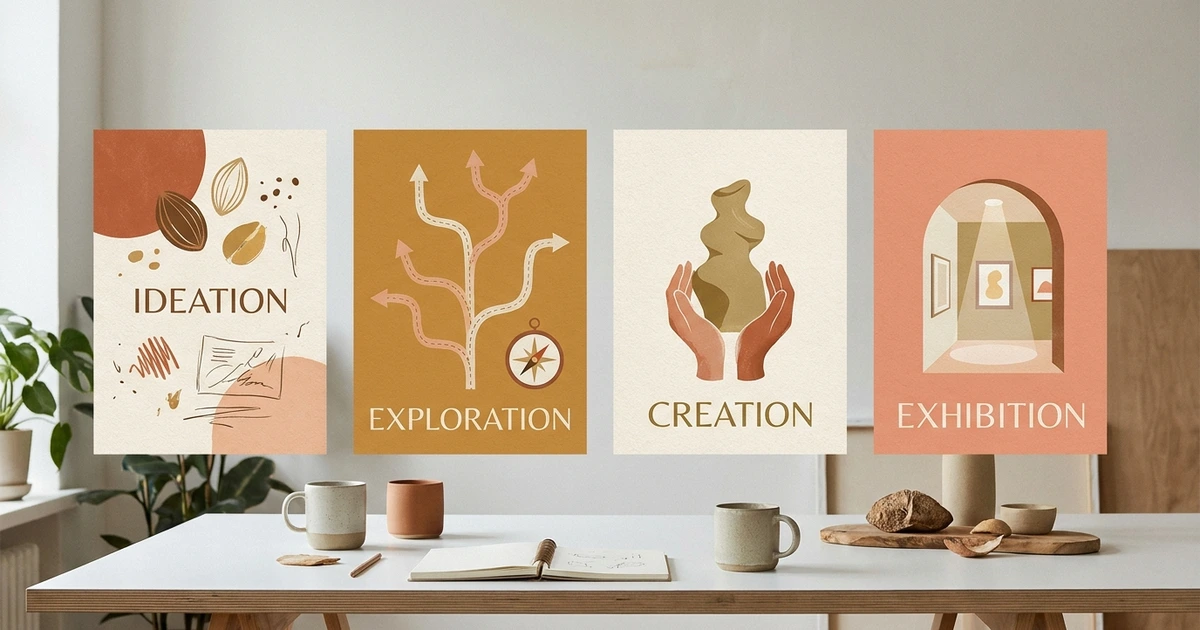
Generating related images is different from asking for the same image repeatedly. A useful series shares a visual system while giving each image a distinct subject, action, or channel role. The system comes from stable prompt fields, references, and a disciplined review loop.
Define the series system
Before creating variations, decide what must stay consistent:
- Subject identity or product geometry
- Camera distance and crop family
- Palette and lighting direction
- Background material or location
- Illustration medium or photographic finish
- Amount and position of copy space
Put these rules in a short “series header” that appears in every prompt. Keep the variable fields separate for the individual scene.
Use a stable prompt template
Series style: [medium, palette, lighting, texture]. Preserve [identity or geometry]. Create [new subject or action] in [setting]. Compose as [crop and placement] for [channel]. Leave [copy space]. Avoid [drift or unwanted elements].
Example series header:
Series style: realistic editorial photography, cobalt and soft cream palette, soft directional morning light, restrained contrast. Preserve the matte steel bottle silhouette and blue cap.
Variation A can show the bottle on a hiking trail; variation B can show it beside a work bag; variation C can show it on a kitchen counter. The header keeps the product and visual language stable while the scene changes.
Decide when to add a reference
Text-only prompts are fine when the series shares only broad style cues. Add a permitted reference when identity, product shape, pose, or layout must remain recognizable. State the reference’s role explicitly:
Use the uploaded result as a style and composition reference. Preserve the lighting direction, palette, and subject scale. Change the setting to a quiet train platform and keep the wide crop.
Do not assume a reference will preserve every pixel. Compare each variation to the approved source and repeat the invariants when drift appears.
Generate in controlled batches
Create a small batch, then review it as a set. Look for:
- Shared palette and light direction
- Stable subject scale and camera language
- Distinct scenes rather than near-duplicates
- Consistent copy space for the destination channel
- No invented logos, labels, or distracting objects
If every image drifts, shorten the variable section and strengthen the series header. If every image looks identical, give the variable a concrete action or setting rather than adding more style adjectives.
Build a reusable prompt library
Save the stable fields as a template and record the reason for each variation. A useful library might contain:
- Brand or campaign header
- Product or character invariants
- Channel presets for square, portrait, and landscape
- Approved lighting and palette options
- Review notes from the last batch
FreeGPTBanana supports prompt templates in the authenticated Imagine workspace. The current model, size, and credit information are shown before generation. Start with the AI image prompt examples or open Imagine with a related-image campaign.
Avoid false consistency
A matching color palette does not make a series accurate if a product changes shape or a person’s identity drifts. For commercial work, check geometry, labels, hands, faces, and the final crop. Add critical text and logos during design production, then proofread the finished asset.
Only upload references you have permission to use. Remove private data and unrelated people, and keep a record of which source guided each variation.
FAQ
How do I use AI to generate related images?
Define stable series rules, place them in every prompt, vary one scene or action at a time, and review the outputs together. Use a reference when identity, geometry, or layout matters.
Why do related AI images look inconsistent?
The prompt may leave camera, lighting, palette, or subject details implicit. Add a concise series header and concrete invariants, then simplify the variable section.
Can I create a whole campaign from one reference image?
You can use one approved image as a guide for multiple variations when the workflow supports references. It will still require per-image review and focused corrections.
How many variables should change at once?
Change one major variable first, such as setting or action. Once the series remains stable, test a second variable in a separate batch.
Put the workflow into practice
Create a focused first image
Start with included credits, keep the prompt and references together, and refine the result in your private Imagine workspace.
Open Imagine